How to create cinematic photo looks
Break down the key ingredients of cinematic color grading: split toning, film fade, controlled contrast, and lens effects. Step-by-step guide with examples.
How to create cinematic photo looks
“Cinematic” is one of those words that gets thrown around a lot. But what does it actually mean when applied to photography? And more importantly, how do you get that look?
Personally, I’m drawn to anything that feels analog. Contrasty, with character. Not a specific signature look I apply to everything, but a general direction: if the photo feels like it could have been shot on film, I’m happy.
What makes a photo look cinematic?
Cinema has over a century of visual language. When we say a photo looks “cinematic,” we’re usually referencing a few specific characteristics:
- Restricted color palette. Films commit to limited palettes, such as teal and orange, warm earth tones, or cool desaturated blues.
- Controlled contrast. Not blown out, not flat. Mid-range contrast gives depth without clipping shadow detail.
- Lifted blacks. Pure black rarely exists in cinema. The darkest tones are dark gray, often with a subtle color tint.
- Widescreen framing. The aspect ratio itself signals cinema. A 2.39:1 crop immediately changes the mood.
- Lens characteristics. Subtle halation, bloom, or chromatic aberration mimic real cinema lenses.
Step by step: building a cinematic grade
Let’s build a cinematic look from scratch. Follow along in Spectral:
Step 1: set the foundation with exposure
Start with proper exposure. Cinematic images are rarely bright. They sit in the lower midtone range. Pull exposure down slightly (-0.3 to -0.5) and lift shadows (+10 to +20) to open up the dark areas without making the image feel bright.
Step 2: shape the contrast
Don’t just use the contrast slider. It’s too blunt. Instead:
- Pull highlights down (-15 to -25) to control bright areas.
- Lift shadows slightly (+10 to +15).
- This creates a compressed tonal range that feels like film.
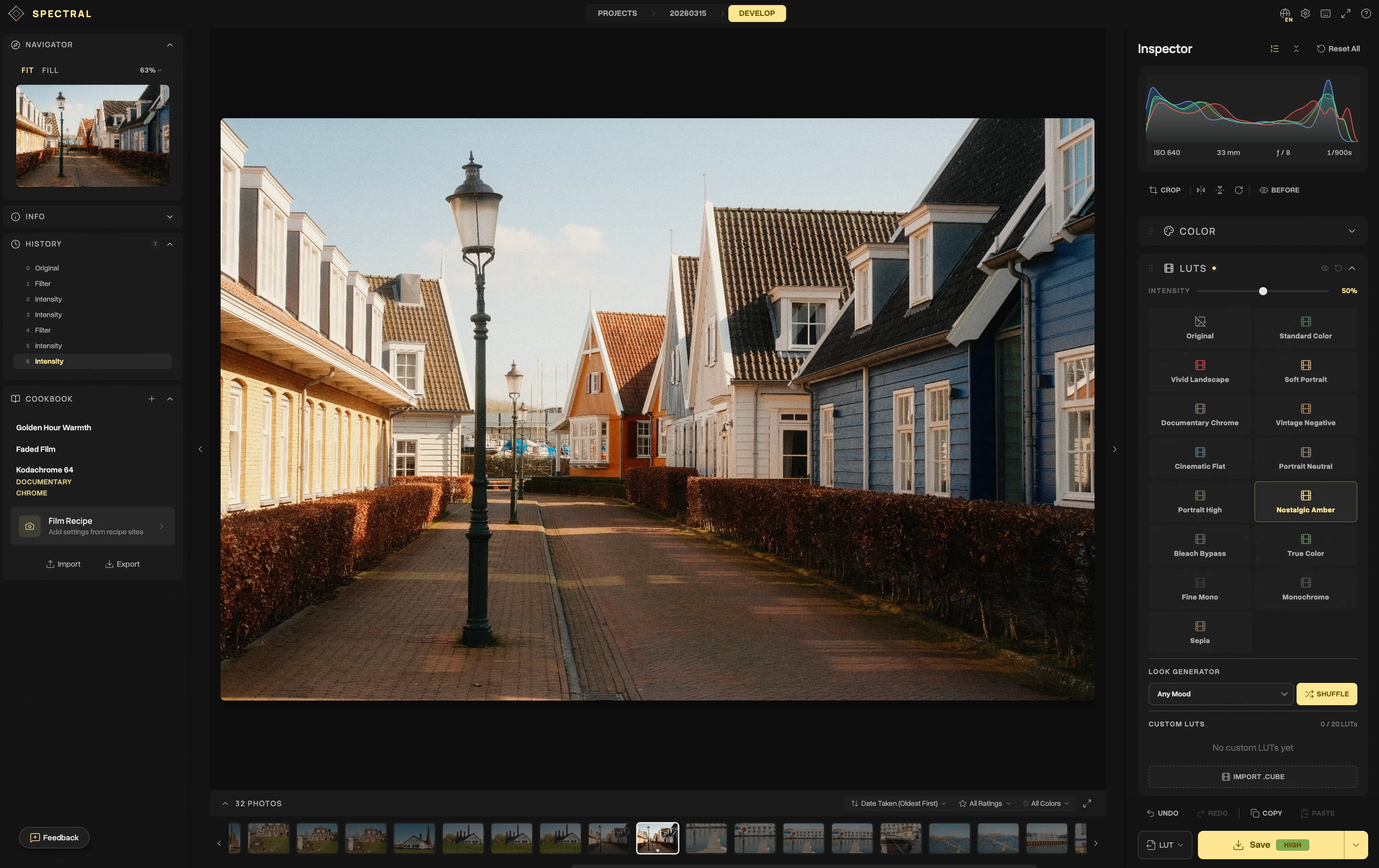
Step 3: apply a film LUT as a starting point
Choose a LUT that’s in the neighborhood of your target look. In Spectral, the built-in options work well:
- Nostalgic Amber for golden-hour and warm scenes
- Cinematic Flat for moody, low-contrast scenes
- Documentary Chrome for a neutral-warm starting point
Set the intensity to 50-70%. You’ll refine from here.
Step 4: split toning with curves
Per-channel curves give the most precise control over color mood. Open the RGB curves tool:
Blue channel. Lift the shadow point. This adds blue into the dark areas, creating that signature teal-shadow look. Then pull down the highlights slightly to add warmth (yellow) to the bright areas.
Red channel. A subtle lift in the shadows adds warmth to keep skin tones natural.
Step 5: refine with HSL
Target specific color ranges:
- Orange hue. Shift slightly toward red for warmer skin tones.
- Blue hue. Shift toward teal for an indie film palette.
- Green saturation. Pull down for a less digital look in foliage.
Step 6: add film effects
This is optional but adds authenticity:
- Film grain. Set to weak or medium. Grain breaks up digital smoothness.
- Halation. A subtle amount (10 to 15) adds a warm glow around high-contrast edges.
- Vignette. Darken the edges slightly (-10 to -20) to focus the eye on the center.
Step 7: crop to widescreen
Use the crop tool to apply a 2.39:1 or 16:9 aspect ratio. The wider frame immediately triggers a cinematic association.
Common mistakes
Going too far with teal and orange
The teal-and-orange look is a meme at this point. Use it subtly. Real cinema uses this palette, but not as aggressively as most tutorials suggest.
Too much grain
Film grain should be felt, not seen. If someone notices the grain before the subject, it’s too much.
Forgetting about the subject
Color grading serves the image, not the other way around. If your grade draws attention to itself rather than enhancing the subject, dial it back.
Save and reuse your look
Once you’ve built a cinematic grade you love:
- Save it as a Cookbook recipe in Spectral
- Apply it to other photos with one click
- Export it as a
.cubeLUT to use in video editing software - Share the recipe JSON with other photographers
Consistency separates casual edits from a deliberate visual style. I lean toward an analog, contrasty, warm look. Having a few saved recipes means I avoid rebuilding that grade from scratch every time.