Export your color grade as a LUT
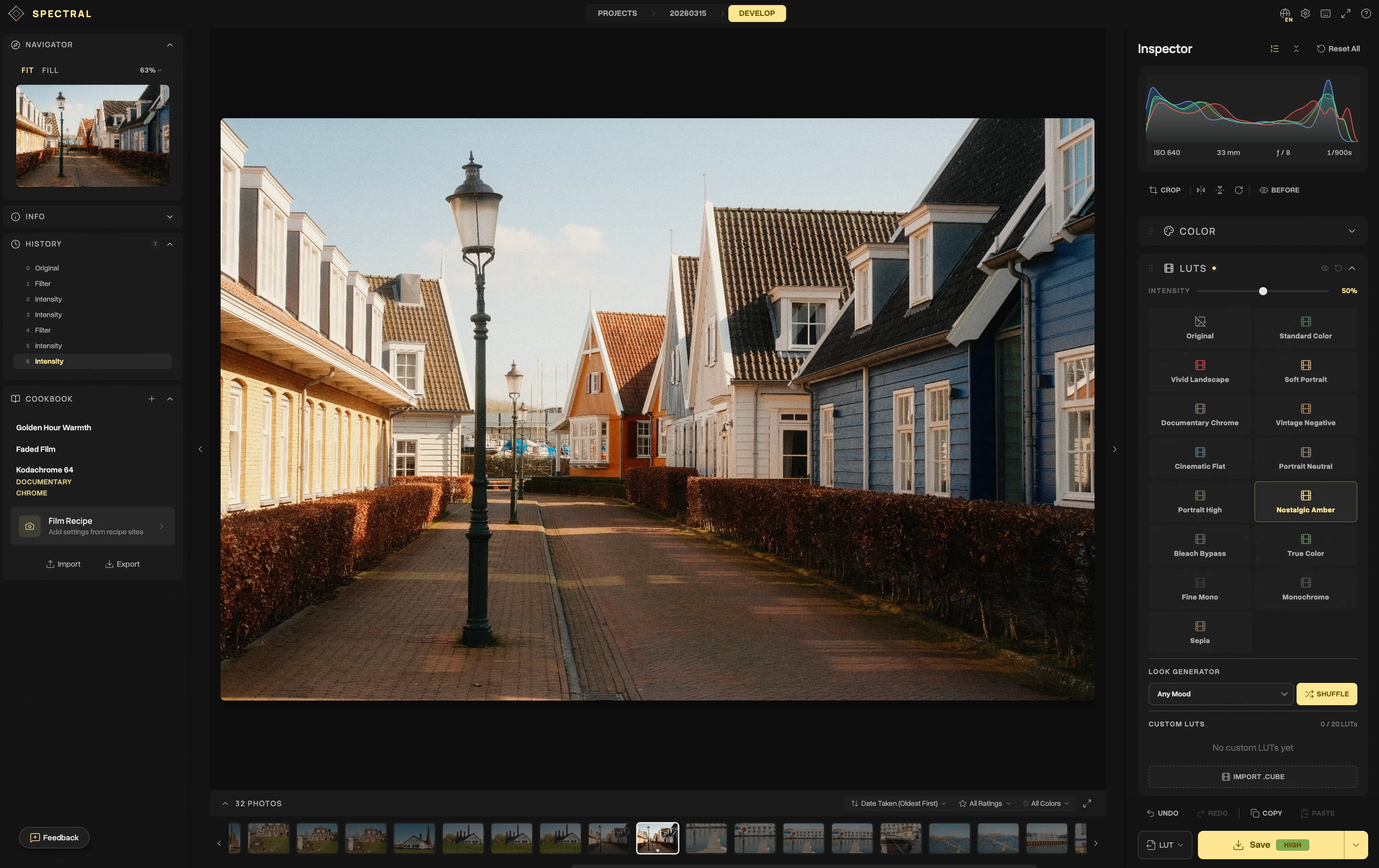
Spectral lets you export your current color grade as a reusable .cube LUT file. Here's why that's useful and how it works.
Export your color grade as a LUT
One of Spectral’s distinctive features is the ability to export your current color grade as a .cube 3D LUT file. This might sound technical, but it opens up genuinely useful workflows.
What does “export as LUT” mean?
When you’ve dialed in a look in Spectral by applying a film LUT, adjusting curves, tweaking HSL, and setting color wheels, the full chain of color adjustments can be captured as a single .cube file.
This file is a 3D Look-Up Table that maps every possible input color to its graded output. Any software that supports .cube LUTs can apply your exact look.
Why would you want this?
Cross-platform consistency
You graded photos in Spectral but also edit video in DaVinci Resolve, Premiere Pro, or Final Cut. Export your look as a LUT and apply the same grade to your video footage.
Sharing looks
Built a color grade you’re proud of? Export it as a .cube file and share it with other photographers. They can import it into Spectral (or any LUT-compatible tool) and apply your exact look.
Building a personal LUT library
Over time, you develop a visual style. Maybe you have a “golden hour” look, a “moody street” look, and a “clean portrait” look. Export each one as a LUT and build your personal library.
Batch application
Apply the same color grade across a large set of images by importing your LUT. Instead of manually matching settings, the LUT ensures perfect consistency.
How it works technically
When you click “Export LUT” in Spectral, the app:
- Generates a neutral color grid (33×33×33 = 35,937 individual colors)
- Runs each color through your current WebGL pipeline (all your adjustments applied)
- Records the output color for each input
- Writes the result as a standard
.cubefile
The result is a complete snapshot of your color transformation. Film LUTs, curves, HSL, color wheels, temperature, and saturation all bake into one file.
Choosing the right grid size
Spectral lets you export in two sizes:
| Size | Colors | File size | Use case |
|---|---|---|---|
| 33×33×33 | 35,937 | ~1.5 MB | Standard quality, compatible everywhere |
| 64×64×64 | 262,144 | ~11 MB | Higher precision, subtle gradient preservation |
For most purposes, 33×33×33 is perfectly sufficient. Use 64×64×64 if you have very subtle color transitions that you want to preserve accurately.
Limitations
A LUT captures the color transformation, but not everything:
- Geometry. Crop, straighten, and flip are not included.
- Local adjustments. Gradient masks are spatial, not color-based.
- Detail. Sharpening, noise reduction, and clarity operate on pixel structure rather than color.
- Effects. Grain and vignette are not pure color operations.
Think of the LUT export as capturing your “color recipe” specifically. The spatial and texture adjustments are separate.
A practical example
- Import a photo into Spectral
- Apply the Documentary Chrome LUT at 60% intensity
- Open curves and lift the blue shadows
- Shift the HSL green hue toward teal
- Reduce saturation slightly
- Click Export LUT → 33×33×33
- Save the
.cubefile
Now you have a reusable file that captures steps 2-6 in a single operation. Import it into Spectral (or Resolve, Premiere, etc.) and apply it to any image.