Understanding tone curves for better photos
The curves tool is the most powerful adjustment in any photo editor. Learn how to read and use RGB curves to transform your images.
Understanding tone curves for better photos
If you could only have one adjustment tool, pick curves. Every slider in a photo editor, like exposure, contrast, highlights, and shadows, is a simplified version of what curves do.
What is a tone curve?
A tone curve is a graph where the horizontal axis represents the input tones from shadows on the left to highlights on the right, and the vertical axis represents the output tones from dark at the bottom to bright at the top.
A straight diagonal line from bottom-left to top-right means no change. Every input tone equals its output. The creative control begins when you bend this line.
The basics
S-curve: instant contrast
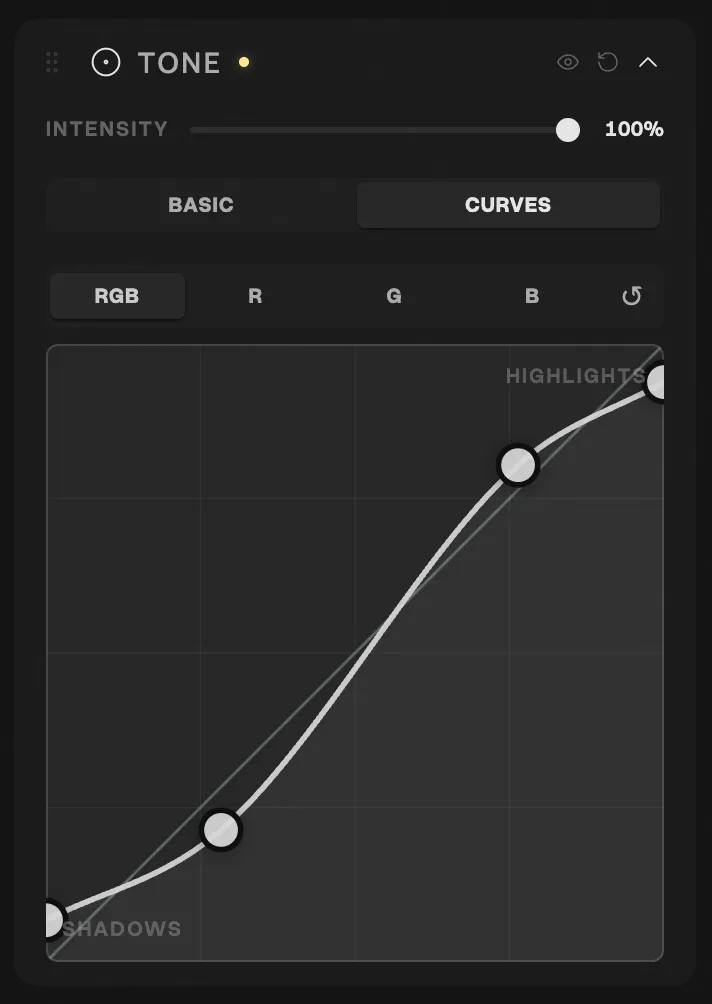
The most common adjustment. Pull the shadows down slightly and push the highlights up. This creates an S-shape that adds contrast. It’s the foundation of almost every film look, and personally, it’s where most of my edits start. I like my photos contrasty, and even a subtle S-curve immediately gives an image that analog punch.
Lifted blacks: the film fade
Instead of starting the curve at the bottom-left corner, pull the shadow point up. The darkest tones become dark gray instead of pure black. This is the signature look of faded film. Combined with a gentle S-curve, you get contrast with character that feels punchy without harsh clipping.
Crushed highlights: matte look
Pull the top of the curve down so the brightest areas become slightly dimmer. Combined with lifted blacks, this creates a compressed tonal range that feels analog and muted.
Per-channel RGB curves
This is where curves become truly powerful. Instead of adjusting overall brightness, you can adjust the red, green, and blue channels independently.
Red channel
- Pull up the shadow point to add red and warmth to dark areas.
- Pull down the highlight point to add cyan and cool tones to bright areas.
- Split tone by lifting red in shadows and pulling red down in highlights.
Blue channel
- Lift the shadow point to add blue to shadows.
- Pull down the highlights to add golden yellow to bright areas.
- This channel creates the strongest cinematic mood shift.
Green channel
- Green typically needs the least adjustment.
- Lifting adds green tint.
- Pulling down adds magenta to warm up skin tones.
Practical recipes with curves
Warm cinematic look
- RGB: Gentle S-curve for contrast
- Blue channel: Lift shadows (+15), pull highlights (-10)
- Red channel: Lift shadows slightly (+5)
- Result: Warm highlights, slightly cool shadows, gentle contrast
Faded film look
- RGB: Lift the black point to roughly 15%
- Blue channel: Slight S-curve
- Green channel: Subtle lift in shadows
- Result: Faded, desaturated, nostalgic
High contrast dramatic
- RGB: Strong S-curve
- Blue channel: Pull highlights down noticeably
- Red channel: Subtle lift across midtones
- Result: Punchy, warm, dramatic
Tips for using curves effectively
Less is more
Small moves create natural results. A shift of 5 to 10 points on a channel curve is already significant. If you’re dragging points across half the graph, dial it back.
Use the histogram as a guide
The histogram shows where the tonal information lives. If your photo is mostly midtones, focus your curve adjustments in the center of the graph.
Always check skin tones
When adjusting channel curves, glance at skin tones in the image. Human vision is sensitive to unnatural skin color. If skin looks green or magenta, adjust the green channel.
Combine with other tools
Curves set the tonal base, HSL adjustments refine specific colors, and film LUTs add overall color character. Use them together.