What is a 3D LUT and how to use one
3D LUTs transform the colors in your photos using a mathematical lookup table. Learn what they are, how they work, and how to use them in Spectral.
What is a 3D LUT and how to use one
If you’ve spent any time in photography or video forums, you’ve probably seen the term “LUT” thrown around. Film LUTs, cinematic LUTs, LUT packs for sale. But what actually is a LUT, and why should you care?
LUT stands for look-up table
A LUT is a mathematical mapping that transforms one set of colors into another. Think of it as a recipe. For every input color, the LUT specifies what the output color should be.
A 3D LUT maps colors across three dimensions (red, green, blue) simultaneously. It creates complex transformations that simple slider adjustments cannot achieve, such as pushing warmth into highlights while cooling shadows, shifting greens toward teal without affecting skin tones, or emulating the chemical response of vintage film stocks.
How a .cube file works
The most common LUT format is the .cube file. Inside, it’s a plain text file containing a structured grid of numbers:
LUT_3D_SIZE 33
0.0 0.0 0.0
0.0 0.0 0.05
0.0 0.0 0.12
...
Each line represents an output color (as red, green, blue values between 0 and 1) for a specific input color. A 33×33×33 LUT contains 35,937 color mappings. Colors between grid points are interpolated.
Where to get LUTs
Built-in film emulations
Spectral ships with 14 built-in LUT presets inspired by classic film stocks. These are ready to use the moment you open a photo.
Film simulation recipes
Many Fujifilm photographers share their camera settings as “film recipes.” While these are camera-side settings, the resulting look can often be approximated with a LUT.
Custom LUTs
If you have .cube files from other tools or photographers, you can import them directly into Spectral. Just drag the file into the LUT section.
Using LUTs effectively
A common mistake is applying a LUT at full strength and calling it done. Here are some tips:
Dial back the intensity
Most LUTs are designed to show their effect clearly at 100%. In practice, 40% to 70% intensity often looks more natural. Spectral includes an intensity slider for this reason.
Adjust exposure first
LUTs respond differently to bright versus dark images. Get your exposure roughly correct before applying a LUT.
Stack with fine adjustments
Apply your LUT first, then fine-tune with curves and HSL. Think of the LUT as the foundation and the sliders as refinement.
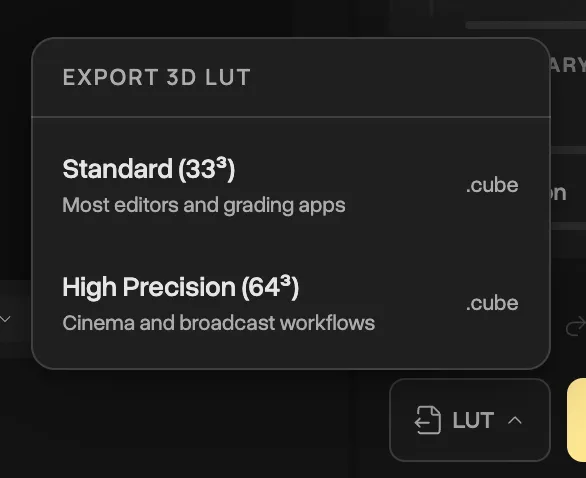
Export your own LUT
Spectral allows exporting your current grade as a .cube LUT file. This lets you:
- Create a look in Spectral and use it in video editing software
- Share your exact color grade with other photographers
- Build a personal library of looks
Try it
Open a photo in Spectral, browse the built-in LUTs, and experiment with the intensity slider. You’ll understand the concept in about 30 seconds.